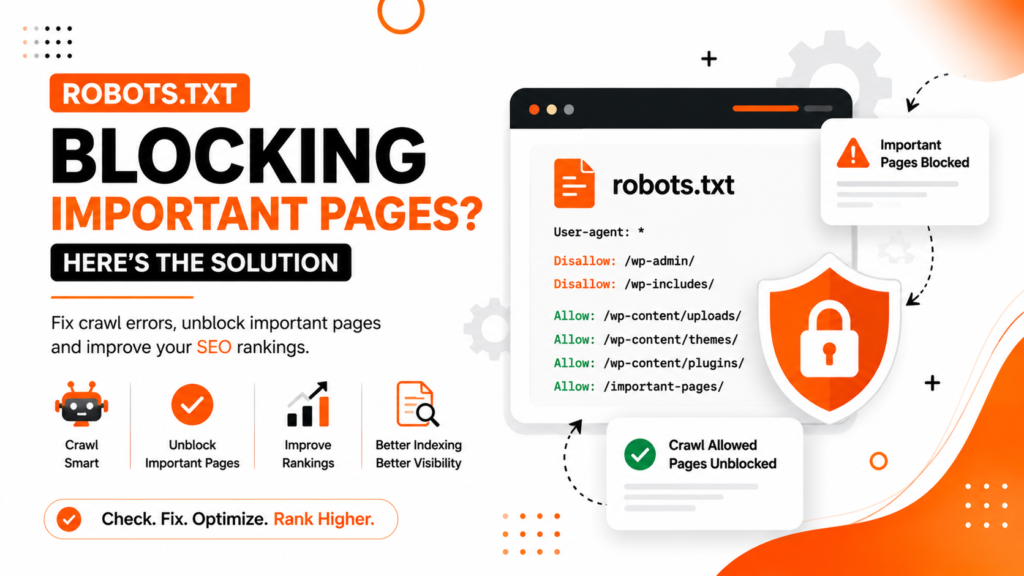
Your website pages are not showing on Google.
You submitted your sitemap, published content, and even requested indexing.
But Google still isn’t finding some of your pages.
One possible reason is your robots.txt file.
A single line inside robots.txt can stop Google from crawling important parts of your website.
The good news is that you can usually find and fix the problem in a few minutes.
What Is Robots.txt?
A robots.txt file tells search engines which areas of your website they can and cannot crawl.
It is usually located here:
https://yourdomain.com/robots.txtGoogle checks this file before crawling your website.
If important pages are blocked, Google may never visit them.
Step 1: Check Your Robots.txt File
Open your browser and visit:
https://yourdomain.com/robots.txtReplace “yourdomain.com” with your actual website address.
What Should Happen?
You should see a text file with rules.
Example:
User-agent: *
Allow: /

Sitemap: https://yourdomain.com/sitemap_index.xml
This is generally fine.
If the Page Doesn’t Open
Your website may not have a robots.txt file.
Move to Step 5.
Step 2: Look for Blocking Rules
Carefully check the file.
Look for lines like:
Disallow: /What Does This Mean?
This tells search engines:
“Do not crawl anything on this website.”
What Should You Do?
If this is on a live website, remove it.
This is one of the most common reasons websites disappear from Google.
Step 3: Check If Important Sections Are Blocked
Sometimes the entire website is not blocked, but important sections are.
Example:
Disallow: /blog/or
Disallow: /services/What Does This Mean?
Google cannot crawl pages inside those folders.
For example:
https://yourdomain.com/blog/post-namemay never be crawled.
What Should You Do?
If you want these pages to appear in Google, remove the blocking rule.
Step 4: Check the Exact Page That Is Missing
Let’s find out if robots.txt is actually causing the problem.
Open Google Search Console.
Go to:
URL Inspection
Enter the page URL that is not showing on Google.
What Should You Look For?
Messages such as:
- Blocked by robots.txt
- Crawling not allowed
- Google couldn’t access the page
If You See These Messages
The robots.txt file is likely causing the problem.
Go back and remove the blocking rule.
Step 5: Check WordPress Settings
Many website owners think robots.txt is the problem when WordPress is actually blocking search engines.
Go to:
WordPress Dashboard → Settings → Reading
Find:
Discourage search engines from indexing this site
What Should You See?
The box should be unchecked.
If It Is Checked
Uncheck it and save changes.
Then request indexing again through Google Search Console.
Step 6: Check If Your SEO Plugin Added Rules
Some SEO, security, or maintenance plugins can modify robots.txt.
If you use Rank Math:
Go to:
Rank Math → General Settings → Edit robots.txt
Review all rules carefully.
What Should You Look For?
Any rule blocking:
- Blog pages
- Service pages
- Product pages
- Category pages
If important content is blocked, remove the rule.
Step 7: Save Changes and Test Again
After updating robots.txt:
- Save the file.
- Open the robots.txt URL again.
- Confirm the blocking rule is gone.
- Go to Google Search Console.
- Open URL Inspection.
- Enter the affected URL.
- Click Request Indexing.
What Happens Next?
Google will revisit the page and may crawl it again.
Indexing can take a few days.
Common Robots.txt Mistakes
Blocking the Entire Website
Example:
Disallow: /This blocks everything.
Blocking Important Content Folders
Example:
Disallow: /blog/or
Disallow: /services/Important pages may never be crawled.
Forgetting to Remove Development Settings
Developers often block search engines while building a website.
Sometimes these settings remain after launch.
Editing Robots.txt Without Understanding the Rules
A small mistake can affect hundreds of pages.
Always review changes carefully.
Quick Checklist
Check these items one by one:
✔ Robots.txt file opens correctly
✔ No “Disallow: /” rule exists
✔ Blog pages are not blocked
✔ Service pages are not blocked
✔ Product pages are not blocked
✔ Search engines are allowed in WordPress
✔ Sitemap is accessible
✔ Google Search Console is connected
How to Know the Problem Is Fixed
Search Google:
site:yoursite.comOr inspect the page in Google Search Console.
If Google can crawl the page and no robots.txt warning appears, the issue is likely resolved.
FAQs
Can robots.txt remove pages from Google?
Not directly. However, if Google cannot crawl a page, it may struggle to understand and rank it.
How do I check if robots.txt is blocking a page?
Use URL Inspection in Google Search Console. Google will tell you if robots.txt is preventing crawling.
Where is the robots.txt file located?
Usually at:
https://yourdomain.com/robots.txtShould I block pages in robots.txt?
Only block pages that do not need crawling, such as some admin or system areas. Do not block important content pages.
How long does Google take to re-crawl a page?
After requesting indexing, it can take anywhere from a few hours to several days.
Need Help Finding Robots.txt Issues?
If important pages are not appearing on Google and you’re unsure whether robots.txt is causing the problem, WebRise Technologies can help.
Our team can review your robots.txt file, Google Search Console reports, sitemap settings, and technical SEO setup to identify exactly what is preventing Google from crawling your website.
Contact WebRise Technologies today for a professional technical SEO audit.